How to Translate PDF to English: Text & Scanned Files
Need an English version of a research paper, report, or manual? Start with the file, not the tool: selectable text can go through document translation, while scanned pages need text recognition (OCR). If your PDF has tables, columns, or diagram labels, test those elements before translating the whole document.
This guide shows how to translate pdf to english with a step-by-step LingFlow walkthrough, when a free method is worth trying, and how to check the downloaded file. Start with a short test PDF so you can catch missing text or shifted tables before committing to the full document.
First, identify the PDF you have
Open the file and try selecting a sentence with your cursor. Then search for a word you can see on the page. Those two checks tell you more than the .pdf extension does.
| What you find | Likely file type | What to do next |
|---|---|---|
| You can select and search most text | Text-based PDF | Try document translation and check the reading order after download. |
| The page behaves like one large image | Scanned PDF | Use optical character recognition (OCR) to read text from the image, then check the English translation. |
| Body text is selectable, but labels inside figures are not | Mixed PDF | Check the figures separately; translating selectable text may leave words inside images unchanged. |
| You also have the original Word or PowerPoint file | Source document available | Consider translating that editable source before exporting a new PDF. |
The searchable text created by OCR can still contain mistakes. A faint scan can turn 8 into B, drop a minus sign, or merge table cells. For a document with important numbers, compare the original and English output rather than trusting searchable text alone.
How to translate a PDF to English, step by step
1. Prepare a safe test file
Keep the original unchanged. If the PDF contains personal, confidential, or regulated information, check your organization's upload rules and the service's current data-handling terms before sending it to any online tool. When possible, test with a non-sensitive page that still contains the difficult elements: a table, a diagram label, a footnote, or a scan.
2. Choose a method that matches the file
For a selectable-text PDF with a simple layout, a browser document translator may be enough for a first attempt. If the file is scanned or its layout matters, choose a tool that supports OCR and lets you download a translated PDF. Test those features on your own file; they are not guarantees that every page will be correct.
If you have the original DOCX or PPTX, try it as well. A PDF is a fixed-layout export; the editable source may give a translation tool cleaner text structure. DeepL's PDF guidance also recommends using the original document when the PDF result is unsatisfactory.
3. Upload, choose English, and translate
For a project-based tool such as LingFlow, follow this sequence:
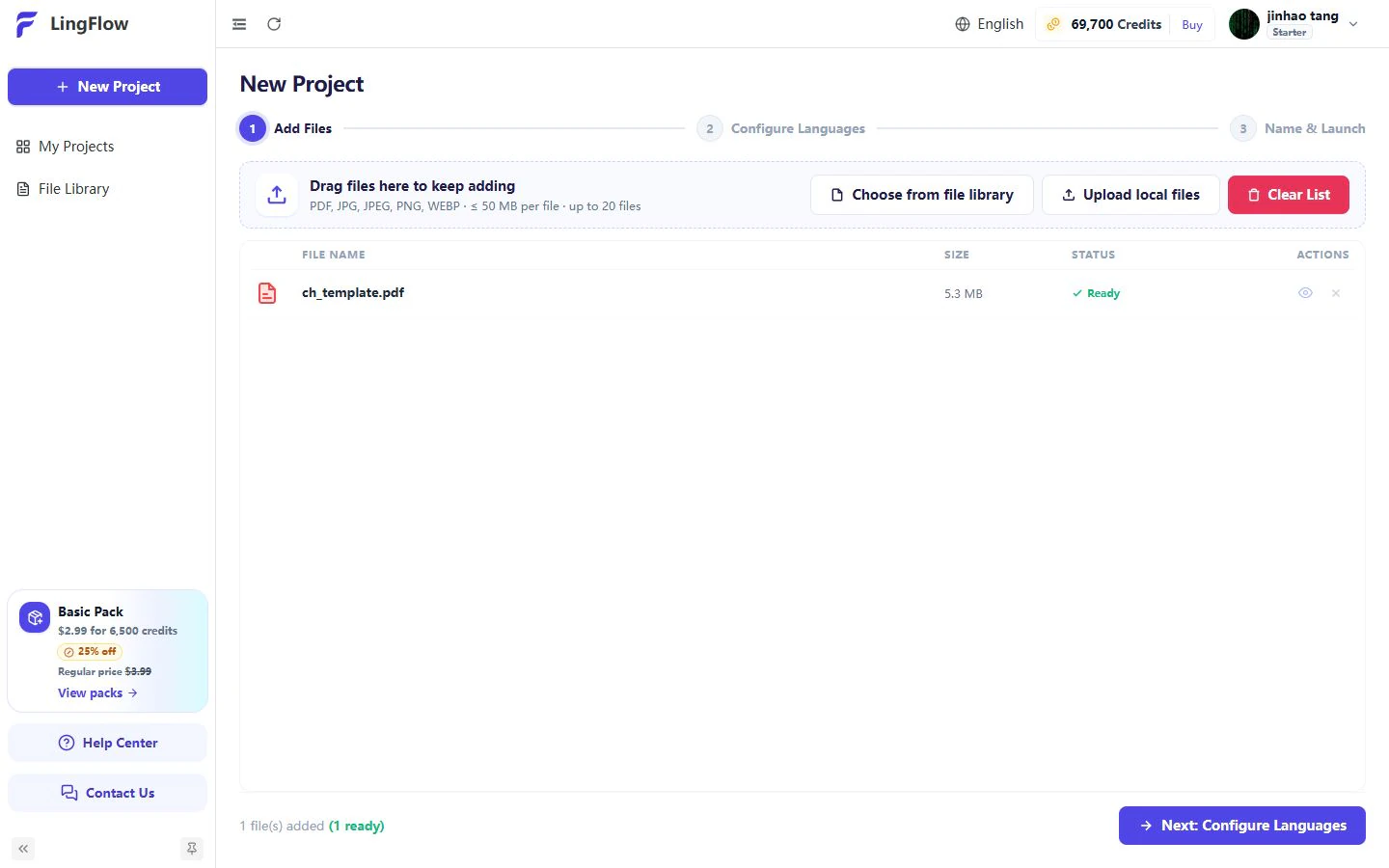
- Add your PDF. Open New Project, choose Upload local files, and wait until the file shows Ready. Click Next: Configure Languages.
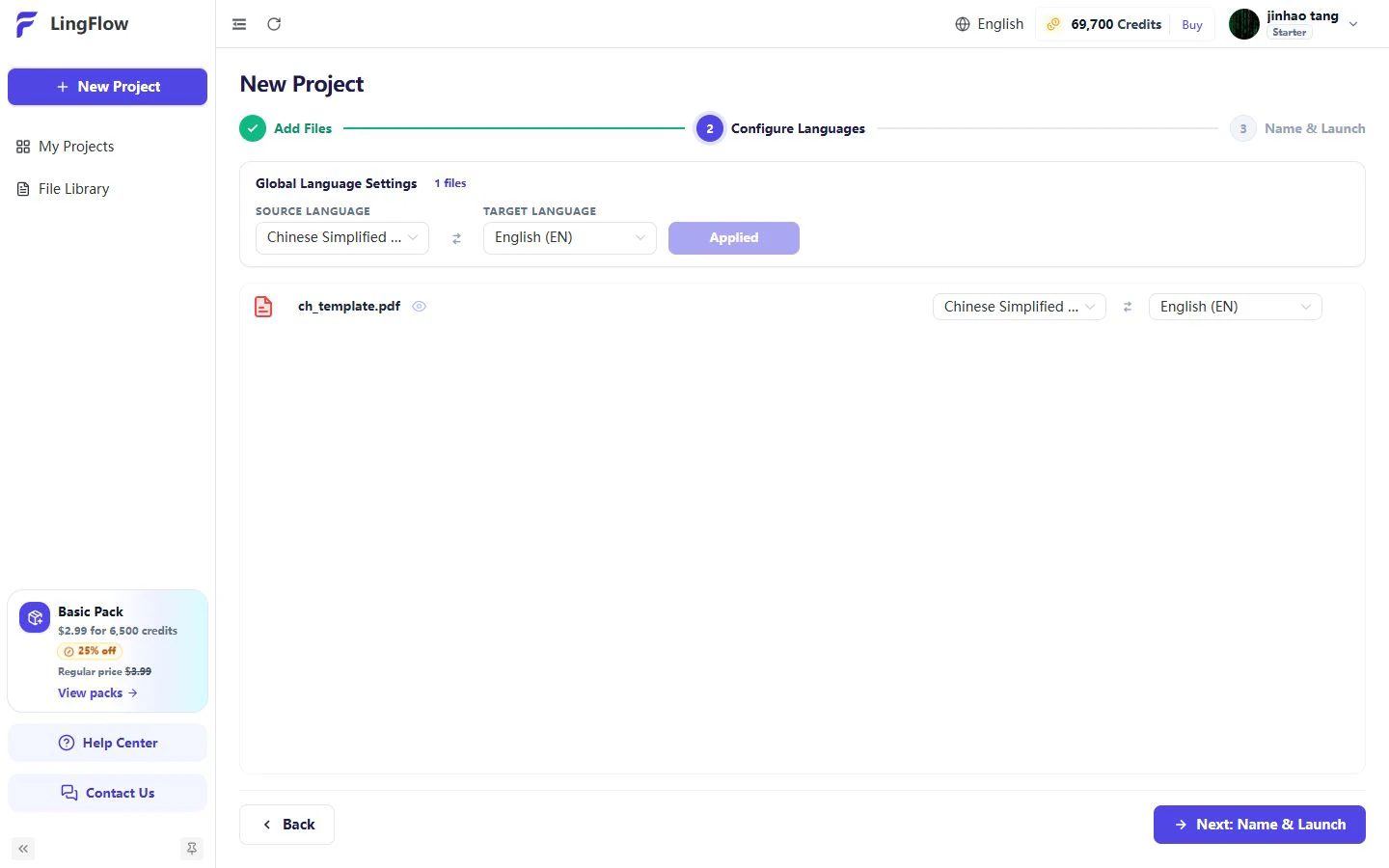
- Choose the languages. Select the correct source language and English (EN) as the target, then click Apply to All Files. Check the language settings beside your file and click Next: Name & Launch. This example uses Chinese Simplified as the source.
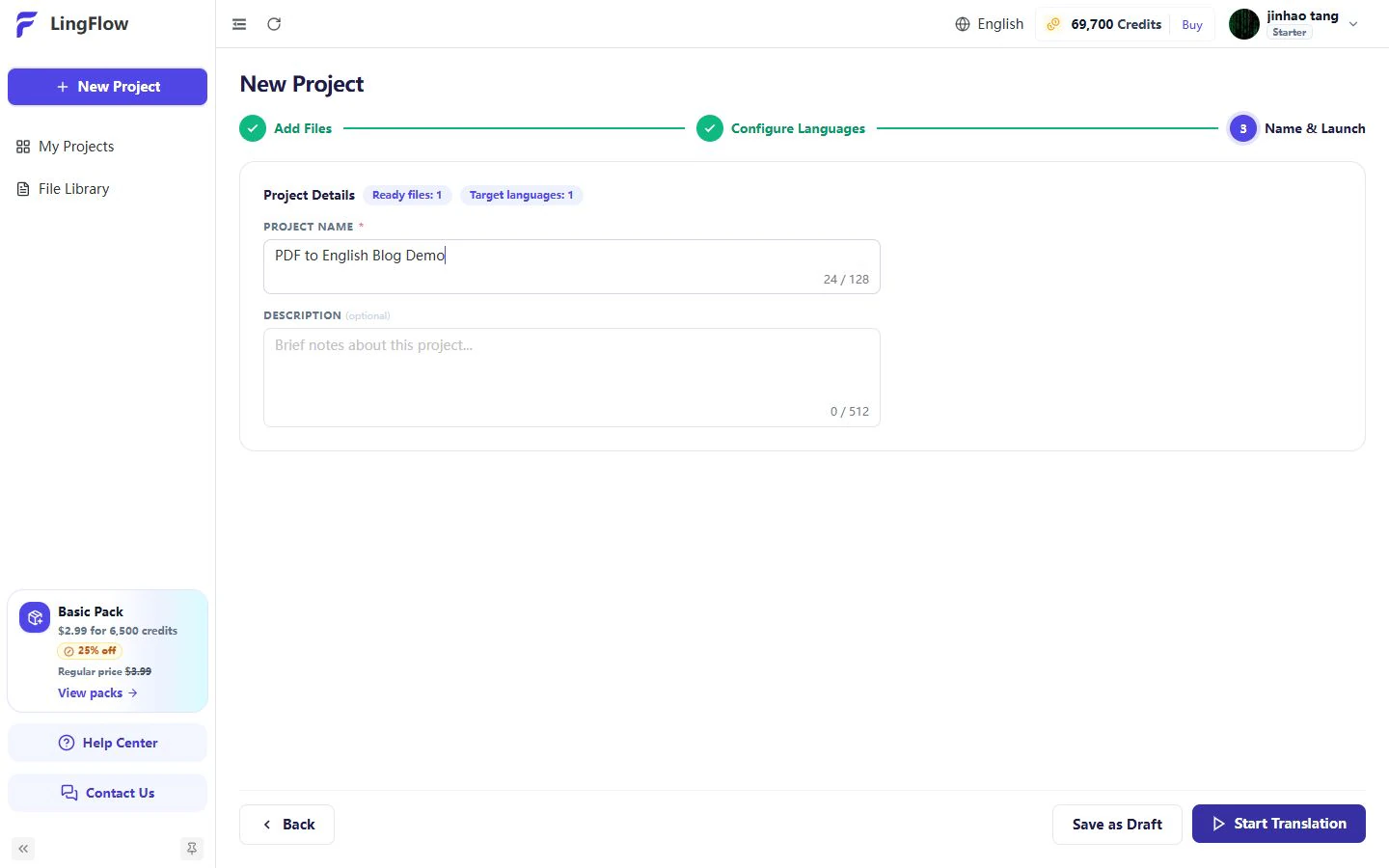
- Name and launch the project. Enter a Project Name and an optional Description. Choose Save as Draft to save without starting, or click Start Translation when you are ready to begin processing.
- Download the translated PDF. Wait for processing to finish, then download the result. Save it separately so the original stays unchanged.
If the test result is usable, repeat the process with the full document. Check any file limits or processing costs shown before starting.
4. Check a page with tables, columns, or images first
Do not judge success from an upload confirmation or a single preview. Open the actual downloaded file next to the original. Check whether every paragraph is in English, whether columns read in the right order, and whether table headers still match their values. Zoom in on diagrams, captions, warnings, and footnotes; these are easy to miss at thumbnail size.
5. Review meaning before sharing
Compare names, dates, measurements, currency values, product codes, and safety instructions with the original. Pay particular attention to words such as “not” and “must not.” Fluent English can still change a number or leave out an important condition. For documents used in legal, medical, financial, or safety decisions, arrange review by a qualified professional; machine translation is not a substitute for professional judgment.
A free route for simple text-based PDFs
On a desktop browser, Google Translate's Documents tab lets you select the source and target languages, upload a PDF, translate it, and download the translated document. Its document-translation instructions list current file and page limits and explain an important scan limitation: text inside images and scanned PDF pages can remain untranslated in the output. Document translation is also unavailable on mobile or smaller screens.
That makes this route useful for a quick reading copy of a straightforward text PDF, but not a dependable way to translate an image-only scan. As with any tool, inspect the downloaded file before using it as a finished English document.
Fix the problems you actually see
The scan still shows the original language
Check that your tool reads text inside scanned images, rather than translating only text you can select. If the text is misread, try a clearer scan or the original digital file. A scan with clearer text and less background noise is a better starting point than repeatedly translating the same blurry page.
Tables or columns read in the wrong order
Compare the English page with the original at full size. Check one row or column at a time, especially where text wraps. If an editable source exists, translate it and export a new PDF; otherwise, correct the affected pages manually or test a PDF translation tool such as LingFlow on the affected page.
The words are English, but the page is clipped
English text can take more or less space than the source language. Look for overflow at the edges of text boxes, cropped captions, and hidden footnotes. The right fix may be a font or layout adjustment, not another translation pass.
A few terms or numbers are wrong
Create a short review list before translating: brand names, recurring technical terms, units, part numbers, and values that must not change. Check those items in the output. If your tool supports a glossary—a list of terms and their preferred translations—use it for repeated terms. Still check the final PDF.
Before you send the English PDF
- Confirm the page count and order match the source.
- Look through every page for text still in the original language; use search to locate any suspicious phrase.
- Compare numbers, units, names, dates, and warnings side by side.
- Inspect tables, multi-column pages, captions, and text inside images.
- Open the downloaded file on another device or PDF viewer if it will be shared widely.
- Keep the source PDF and note any edits made after machine translation.
Frequently asked questions
Can I translate a scanned PDF to English?
Yes, with a workflow that recognizes text in the scan before translating it. Results depend on scan quality, language, handwriting, and page design. Check the recognized content and the final PDF; an image-only page can otherwise look unchanged.
Can I translate a PDF to English for free?
For a small, selectable-text PDF, a free browser document translator may provide a useful first pass. Check its current file limits and whether scanned text is supported. “Free” does not remove the need to review the downloaded result.
Will the English PDF keep exactly the same layout?
Not necessarily. Even a tool designed to preserve formatting can struggle with longer English phrases, narrow table cells, custom fonts, and text inside images. Test a page with these features before translating a long document.
Bottom line
Ready to translate pdf to english? Upload a short test PDF, select the source language and English as the target, and review the downloaded result. If the text, tables, and page order are usable, continue with the full document; if not, use the fixes above before trying again.